How to Encrypt Emails in Outlook and Office 365
Whether you are sending sensitive messages to coworkers within your company or sharing confidential information with external recipients, ensuring confidentiality is essential. Microsoft offers two methods to encrypt email messages, depending on the type of Office subscription and the app you’re using: S/MIME for Outlook email encryption and OME for Office 365 email encryption.
Read this blog post to learn about the different Microsoft email encryption options and how to send and read an encrypted email message in Outlook.

Outlook Email Encryption Options
Let’s start by taking a closer look at each encryption method and how they differ.
Office 365 message encryption (OME)
Office 365 message encryption (OME) relies on Azure Rights Management (Azure RMS), which is part of Azure Information Protection. These services combine email encryption with access controls to provide you with an advanced online encryption service.
The main prerequisite for OME is the activation of Azure RMS for the tenant. For many plans, RMS is activated by default. Unlike other encryption approaches, OME does not use encryption certificates and public keys.
How OME works
OME works by transforming readable text into unintelligible cipher. This ciphertext can be decrypted by the target recipients, but a security breach by unauthorized parties will not lead to a data breach.
Given that it relies on Azure RMS, OME includes identity and authorization policies in addition to encryption options. To encrypt messages with OME, you can use rights management templates and/or mail flow rules.
Rights management templates.You can choose the Encrypt Only option to apply encryption to the message without any additional restrictions or the Do Not Forward option to restrict recipients from sharing the email message.Define mail flow rules.You can create mail flow rules, also known as transport rules, to apply to specific messages or groups of users (depending on whether they are inside or outside your organization), etc. When a user in your organization sends a message that matches a transport rule, the message is automatically encrypted. Steps on how to do this below.
Who can send/receive encrypted messages
With OME, you can send a protected email to recipients regardless of the email service they are using (Gmail, Yahoo mail, etc.). This means that only you, the sender, must have OME to successfully send an encrypted message. The recipient does not need an Office 365 subscription or even Outlook to read the content or even send an encrypted reply.
To read an encrypted message, recipients must be signed in with their Microsoft account credentials. Alternatively, they can receive a one-time passcode to view the message.
Office 365 plans with OME
To use OME, you should have one of the following Office 365 plans:
- Microsoft 365 Business Premium
- Office 365 A1, A3 or A5
- Office 365 Enterprise E3 or E5
- Microsoft 365 Enterprise E3 or E5
- Office 365 Government G3 or G5
Note: If you don’t have one of those plans, you can purchase a standalone license for Azure Information Protection to get all the OME capabilities.
S/MIME encryption
Secure/Multipurpose Internet Mail Extensions (S/MIME) is a certificate-based encryption and digital signature technology in Outlook. S/MIME is a message security service that protects against data breaches and ensures message integrity. With this technology, email messages can be encrypted, and the recipient is protected from spoofing and from receiving tampered messages. In this blog post, we focus on message encryption only.
How S/MIME works
Outlook email encryption uses public and private keys to prevent unauthorized users from reading the content. Only the intended recipient in your organization with the matching private key can decrypt the message (which is encrypted with the sender’s public key), making it virtually impossible for anyone else to read that information. You can also use Outlook encryption to stop the email from being forwarded.
Unlike OME, you need to install the Outlook encryption certificates for users in your organization. This process is not straightforward. However, once users have their certificates, they can easily apply S/MIME encryption to messages.
S/MIME limitations
- S/MIME is supported in Outlook on the web (with a Windows desktop device), Outlook 2010 and later versions, regardless of the Office 365 plan.
- You can only send messages protected with S/MIME to recipients in your organization. Recipients outside the organization won’t be able to decrypt and read messages.
How to Encrypt Emails with S/MIME
First you need to set up S/MIME certificates for users and publish them in the Active Directory account. Then users can configure S/MIME in the Outlook desktop application by following the steps below:
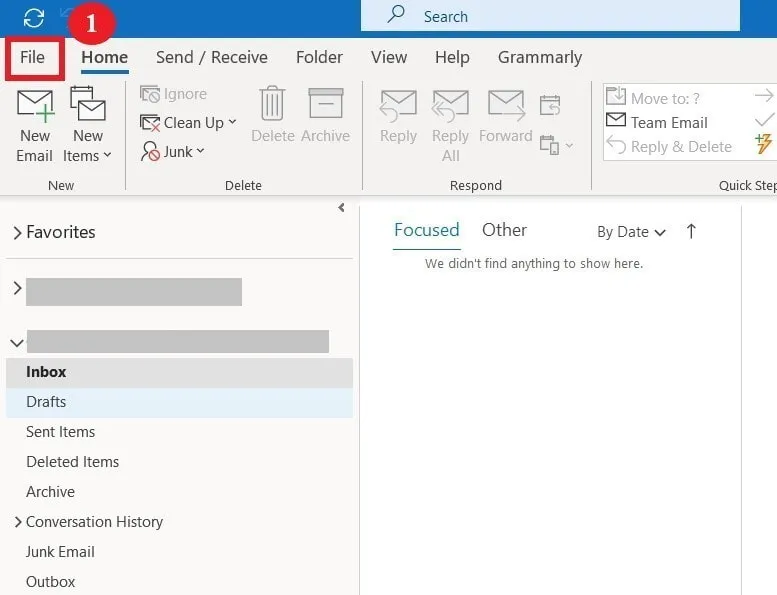
- Click
Filein the top left corner.
- In the left pane, choose
Options.

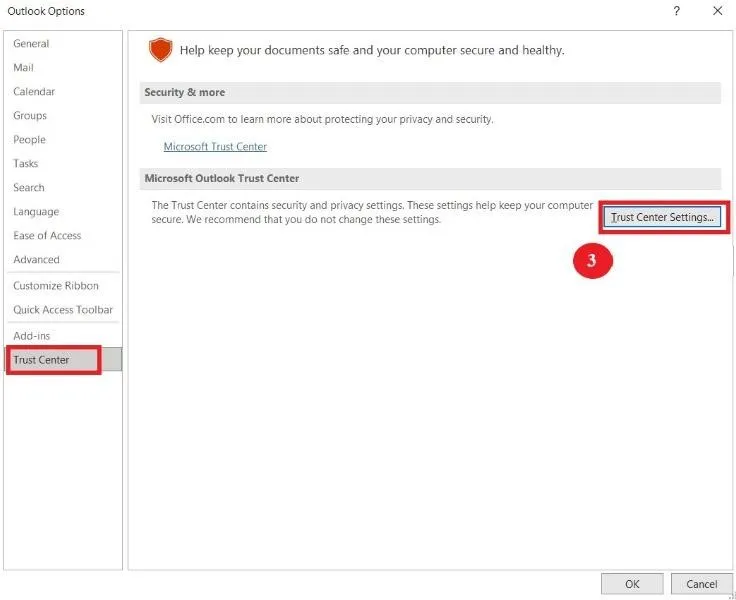
- In the new window, click
Trust Centerand then clickTrust Center Settings.
- Click
Email Securityin the left pane. - Click
SettingsunderEncrypted email. - Under
Certificates and Algorithms, clickChooseforEncryption Certificate. - Select the user’s
S/MIMEcertificate and hitOK.

Now that you have configured the S/MIME certificate, you can start encrypting messages. Open a new email and complete the following steps to encrypt the content:
- Click
Optionsin the menu. - Select
Encryptand chooseEncrypt with S/MIMEfrom the drop-down list.
Note: If you are using Outlook 2016 or Outlook 2019, you should selectPermissionsunder theOptionsmenu tab. - Hit
Sendonce you finish drafting your email.
How to Encrypt Emails with OME
In the Outlook desktop application, encrypting an email using Office 365 Message Encryption (OME) is easier than S/MIME as no certificates are required.
Encrypting with Microsoft 365 Message Encryption
As a Microsoft 365 subscriber, all you have to do is open Outlook on your desktop, then follow the steps below to encrypt a message:
- Click
New Emailin the top left corner. - In the message window, select the
Optionstab. - Click
Encryptand choose an option from the drop-down list based on the restrictions you want to apply. - Once you finish composing the email, hit
Send.
You can find four different restriction options:
Encrypt-Only:This option encrypts the content of the message only.Do Not Forward:The recipient can only read the content but not forward or copy the message.Confidential All Employees:In addition to restricting email forwarding, this option prevents external recipients from viewing the message.Highly Confidential All Employees:This option includes all of the above restrictions and also prevents recipients from replying to the email.
Encrypting a single message in Outlook 2016 and 2019
If you are using either the Outlook 2016 or 2019 desktop application, you can encrypt the message you are composing by doing the following:
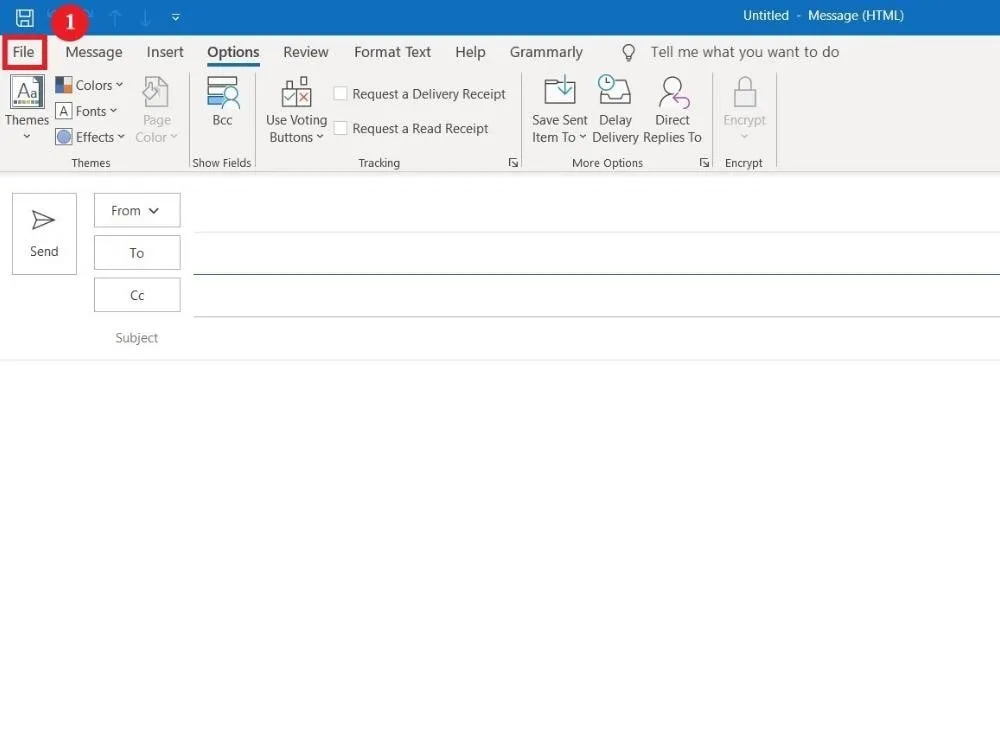
- Click
Filein the upper left corner.
- Select
Properties.
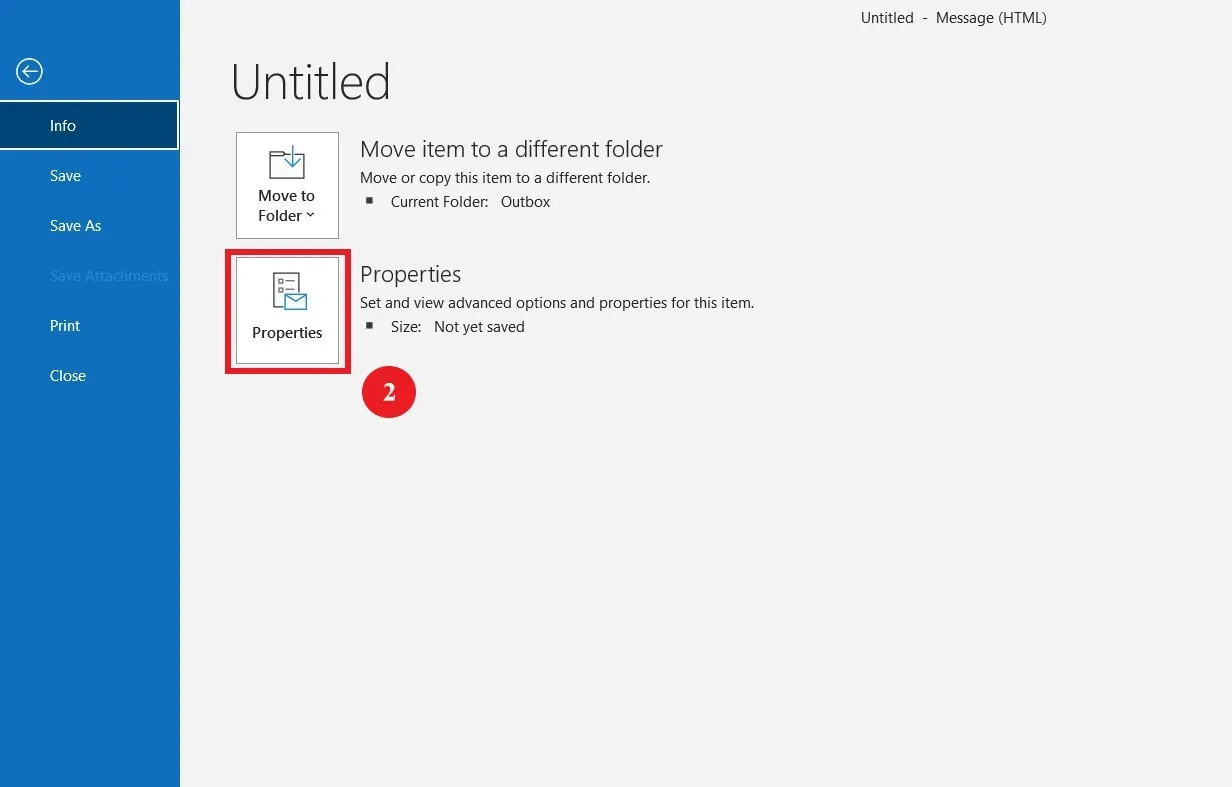
- In the pop-up window, click
Security Settings. - Check the box next to
Encrypt message contents and attachments. - Click
Ok. - Hit
Closeto complete and send your email.

Encrypting all outgoing messages in Outlook 2016 and 2019
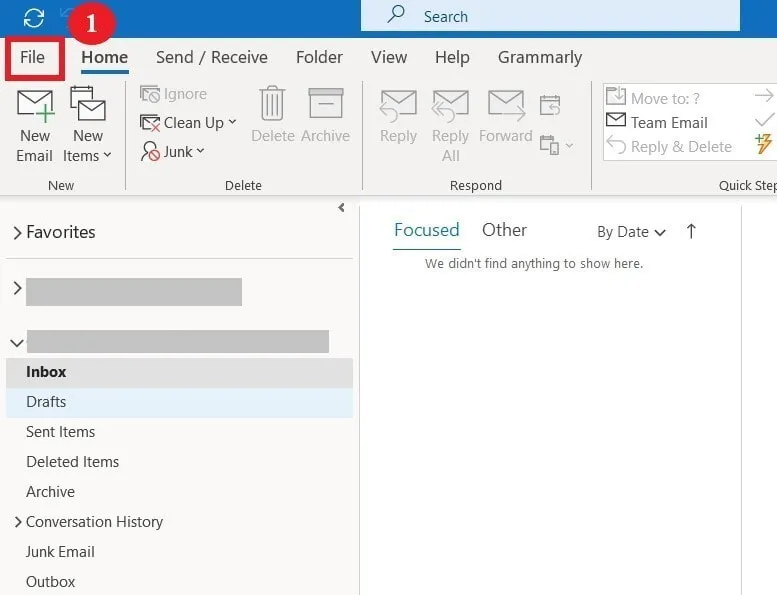
Instead of encrypting every single message you want to send, you can encrypt all outgoing messages in Outlook 2016 and 2019. This way, all you have to do is compose the email and it gets encrypted automatically when you send it. Follow the below steps to do so:
- In the Outlook app, click
Filein the top left corner.
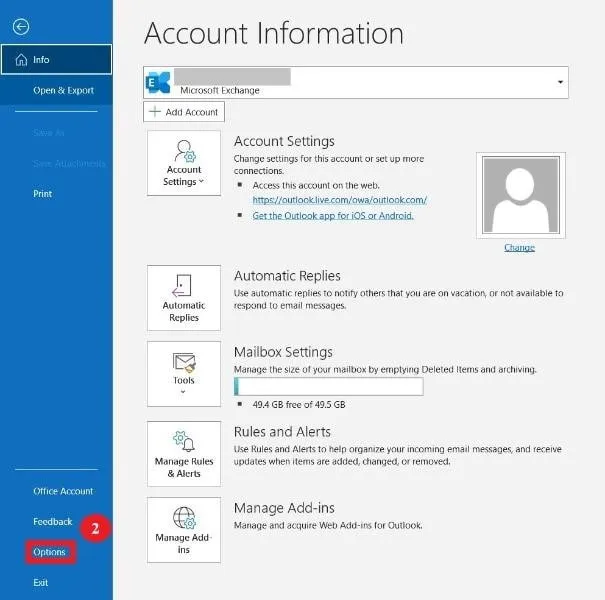
- Choose
Optionsin the left pane.
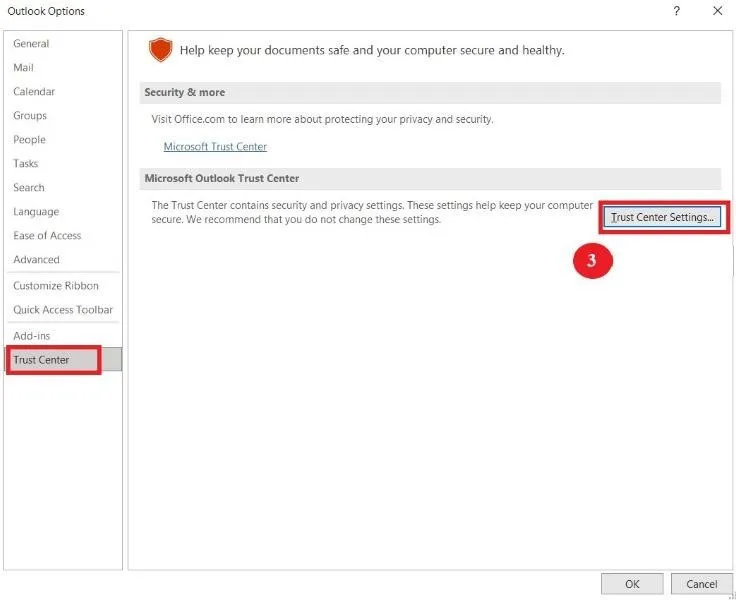
- In the new window, select
Trust Center, then clickTrust Center Settings.
- Click
Email Securityin the left pane. - Select the checkbox next to
Encrypt contents and attachments for outgoing messages. - Hit
Okonce done to complete and send the email.

How to Create Mail Flow Rules to Encrypt Email Messages
Using the Exchange Admin Center (EAC), you can create mail flow rules (also known as transport rules) to safeguard sent and received messages. These rules can automatically encrypt outgoing messages or remove encryption from incoming emails or replies sent from within your organization.
Creating a mail flow rule to encrypt email messages
Mail flow rules allow you to use the OME capabilities to encrypt email messages. Follow the steps below to create a new transport rule:
- Sign in to the Microsoft 365 admin center using an account with administrator permissions.
- In the left navigation pane, click
ExchangeunderAdmin centers.

- Under
Mail flow, selectRules. - Click
+ Newand chooseCreate a new rulefrom the dropdown list.

- In the new window, fill the following settings:
Name:Add a name for this new rule.Apply this rule if:Select under which condition this rule should be applied and enter a value if necessary.Do the following:Choose the corresponding action if the previous rule is applied.Properties of this rule:Select the audit severity level of this rule.Choose a mode for this rule:Pick whether to enforce the rule or test it.

- Enable encryption with OME capabilities by doing the following:
- Click
More optionsto add more conditions. - Under
Do the following, chooseModify the message security. - Choose
Apply Office 365 Message Encryption and rights protection. - Select an RMS template, then click
Save.
- Click

Creating a mail flow rule to remove encryption from email messages
Using mail flow rules, you can remove email encryption applied by a user within your organization on messages or attachments. Follow the steps below to create the mail flow rule:
- Sign in to the Microsoft 365 admin center using an account with administrator permissions.
- In the left navigation pane, click
ExchangeunderAdmin centers.
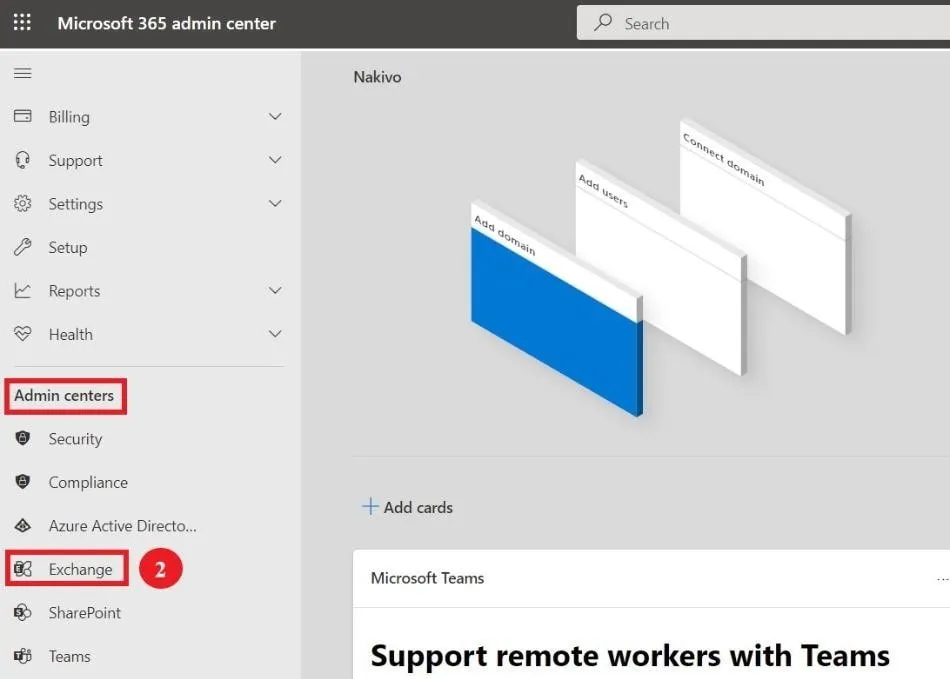
- Under
Mail flow, selectRules. - Click
+ Newand chooseCreate a new rulefrom the dropdown list.
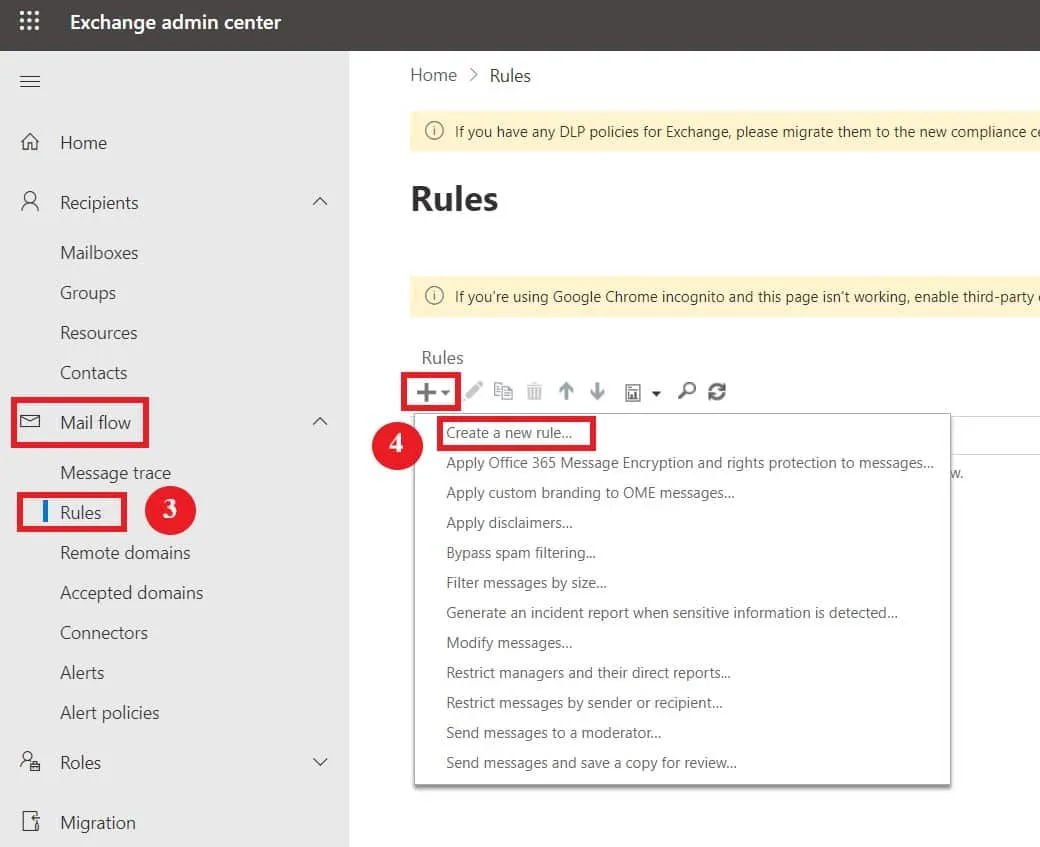
- In the new window, fill the following settings:
Name:Add a name for this new rule.Apply this rule if:Choose the conditions where encryption should be removed.Outgoing email:AddThe sender is located > Inside the organization.Incoming email:AddThe recipient is located > Inside the organization.
Do the following: Choose the corresponding action if the previous rule is applied.- To remove message encryption, select
Modify the message security > Remove Office 365 Message Encryption and rights protection applied by the organization. - To remove encryption from attachments, select
Modify the message security > Remove attachment rights protection applied by the organization.
- To remove message encryption, select
Properties of this rule:Select the audit severity level of this rule.Choose a mode for this rule:Pick whether to enforce the rule or test it.

How to Encrypt Emails in Outlook On the Web
The process of sending secure emails in Outlook on the web is similar to using the desktop application:
- Navigate to Outlook.com in a web browser.
- Click on
New messageto compose an email. - In the message editor, select
Encryptand choose an option based on the restrictions you want to apply:EncryptorEncrypt & Prevent Forwarding.

There are two different encryption options available here:
Encrypt:This option encrypts the content of the message. Recipients can even download attachments, if any, from Outlook web, the desktop application or the Windows mail app without encryption. Accounts using other email clients need a temporary passcode to download attachments.Encrypt & Prevent Forwarding:As the name suggests, emails sent using this option are encrypted and cannot be forwarded. In addition, attachments remain encrypted even after you download them.
How to Read Encrypted Emails
The process of opening and reading encrypted emails varies based on the recipient’s email client.
Opening encrypted emails in Outlook
Encrypted messages shared between Outlook accounts open normally in the Outlook.com, Microsoft 365, Outlook mobile app and Windows mail app since Outlook verifies the recipient’s ID in the background. In other words, you do not need to perform any action to decrypt the email.
The recipient can find a padlock icon next to the email’s subject to indicate that the message is encrypted. If you are using Outlook for Mac or Outlook for Windows, you will receive a message with instructions on how to decrypt the email.
Opening encrypted emails in other mail clients
If the recipients use other mail clients such as Gmail or Yahoo mail, they need to authenticate their accounts before reading the encrypted messages. After opening the email, they need to click on Read the message to verify their accounts using a one-time passcode or by signing in with their mail client.
Conclusion
The two native encryption tools from Microsoft help secure Outlook emails. Both S/MIME encryption and Office 365 Message Encryption (OME) can encrypt the content of the message and add different restrictions to the email to prevent forwarding or replies. But they differ in the working principle and the procedures to apply encryption and other security rules. Now that you know the difference between the two encryption options, you can decide which one best fits your needs.
Keep in mind that it is crucial to protect your Office 365 environment the same way you safeguard your emails. NAKIVO Backup & Replication is a comprehensive solution that offers advanced functionalities including robust Exchange Online backup, ransomware protection, incremental backup and fast recovery.