如何將 Office 365 電子郵件移轉至其他 email 帳戶
將電子郵件從 Office 365 電子郵件帳戶移轉至其他帳戶的情境多種多樣。目標電子郵件帳戶可能是另一個 Office 365 帳戶,也可能是由其他電子郵件服務供應商所託管。這些情境可能包括:擁有兩個電子郵件帳戶,但希望僅使用其中一個接收所有來信;或是從一個電子郵件服務供應商遷移至另一個。
在這篇部落格文章中,我們將介紹如何透過三種設定郵件轉寄的方法,將 Office 365 的email轉寄至另一個帳戶以接收來信:
- 使用 Office 365 網頁版電子郵件或獨立客戶端
- 使用 Office 365 管理中心
- 使用 Exchange 管理中心
此外,我們將說明如何在電子郵件客戶端中,將現有的email從一個信箱移至另一個信箱。

使用 Outlook Web Interface
對於 Office 365 終端使用者而言,使用 Outlook 網頁介面設定郵件轉寄相當方便。若要設定轉寄,請依照以下步驟操作:
開啟網頁瀏覽器,並前往 https://outlook.office.com 以開啟 Outlook Online。
點擊 settings 點擊網頁介面右上角的圖示,以開啟 Office 365 電子郵件設定。接著在 設定 窗格,點擊 View all Outlook settings.
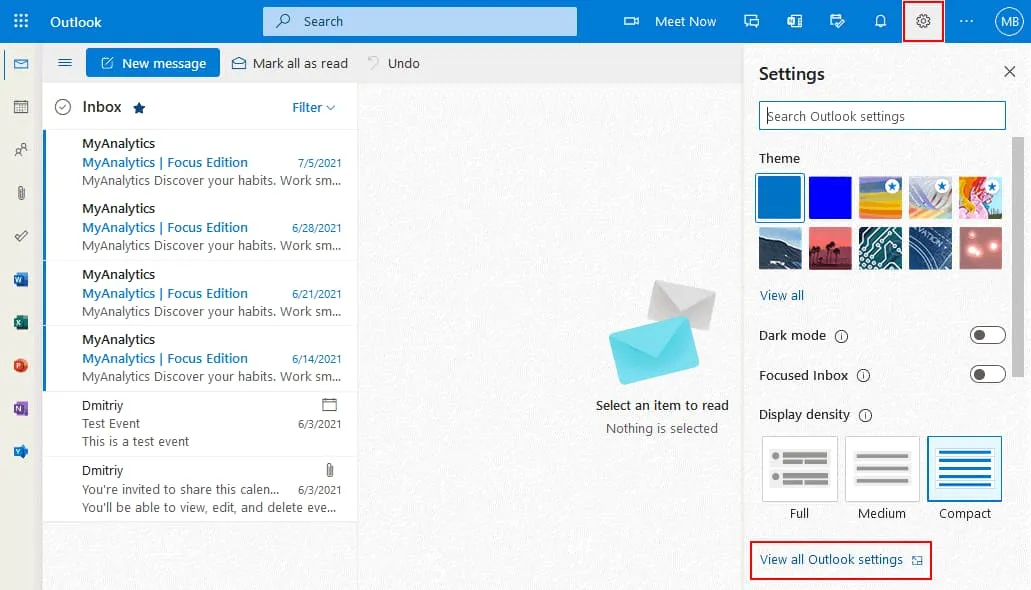
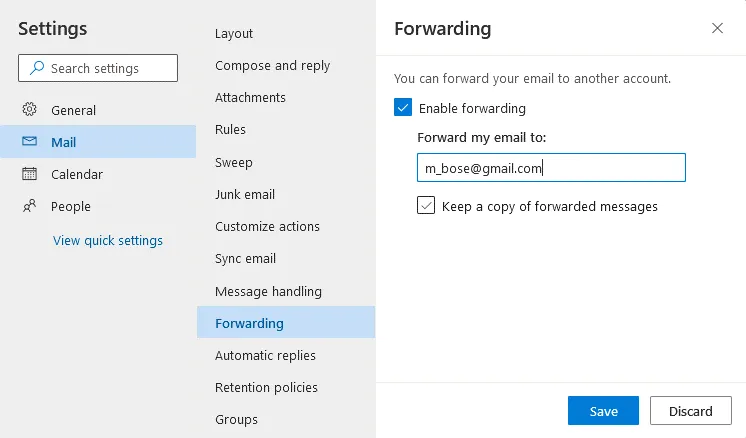
在設定頁面上,請點擊 Mail > Forwarding.
選擇 Enable forwarding 核取方塊。
輸入收件email地址。所有新email都將轉寄至您輸入的email地址。
建議您選取 Keep a copy of forwarded messages 核取方塊。選取此選項後,系統會將一封email副本儲存至您的 Office 365 信箱,並將另一份副本傳送至目標信箱。若email未出現在目標信箱中,或轉寄失敗,此選項有助於降低email遺失的風險。
點擊 Save 以儲存設定。
您可以將舊的email從您的 Office 365 帳戶複製或移動到電子郵件客戶端(例如 Microsoft Office Outlook)中的另一個email帳戶。
使用電子郵件客戶端
您需要在電腦上安裝電子郵件客戶端,才能使用本節所述的方法來移轉已收到的舊郵件,並為新收到的 Office 365 電子郵件設定郵件轉寄功能。本範例中,我使用的是 Microsoft Outlook 2016。
移轉現有email
您必須在 Microsoft Office Outlook 中設定兩個 email 帳戶——一個是 Office 365 帳戶(您將從該帳戶複製 email),另一個則是其他 email 帳戶,例如 Gmail 帳戶(您將把 email 複製到該帳戶)。請參閱此處,了解如何為 Office 365 帳戶設定 email 客戶端 部落格文章.
在您的電腦上開啟 Microsoft Office Outlook。
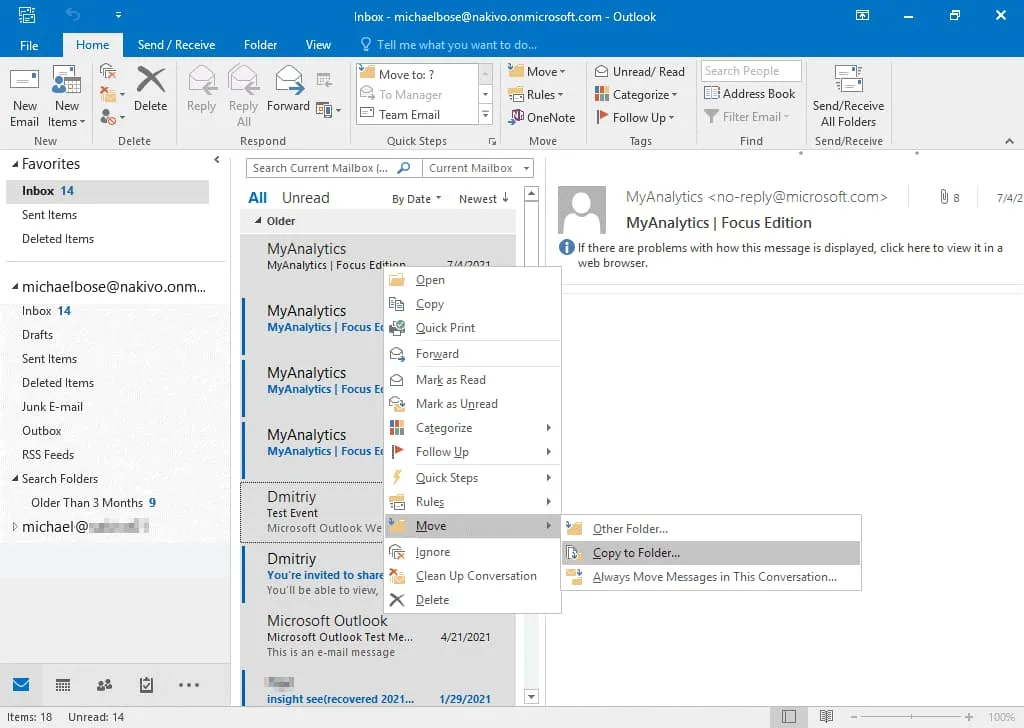
開啟儲存 Office 365 電子郵件的 email 資料夾,例如 Inbox 資料夾。要選取所需的訊息,請按 Ctrl 並點選您需要的每則訊息。或按下 Ctrl+A 選取email資料夾中的所有郵件。在選取的郵件或郵件群組上按右鍵,然後在快顯功能表中點選 Move,然後選擇其中一個可用選項:
Other Folder– 電子郵件將被移至目標電子郵件帳戶的目標資料夾,並從來源位置移除。Copy to Folder– 每封已選中的email都會被複製到目標帳戶的目標資料夾中。來源位置的原始email將予以保留。
我選擇 Copy to Folder 選項(請參閱螢幕截圖)。
請在 Microsoft Outlook 中已設定的相應 email 帳戶中選取一個資料夾。上一步驟選取的 email 將移至此步驟選取的資料夾中。按下 OK 繼續。

建立 Office 365 電子郵件轉寄規則
此方法適用於在設定規則後收到的新email。
Requirements. 必須在 Microsoft Office Outlook 中設定一個 Office 365 帳戶。無需為第二個 email 帳戶(目標信箱)設定 Microsoft Office Outlook。
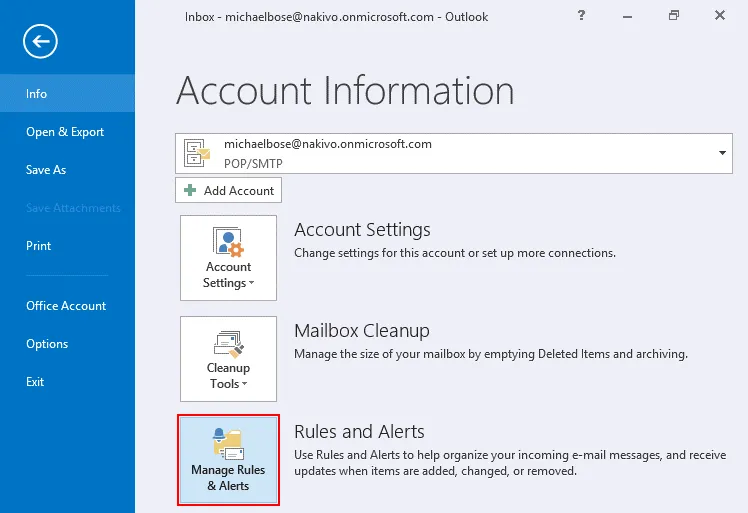
開啟電腦上安裝的 Microsoft Office Outlook,然後按一下 File,在下拉式選單中選擇您的 Office 365 帳戶,然後按下 Rules and Alerts.
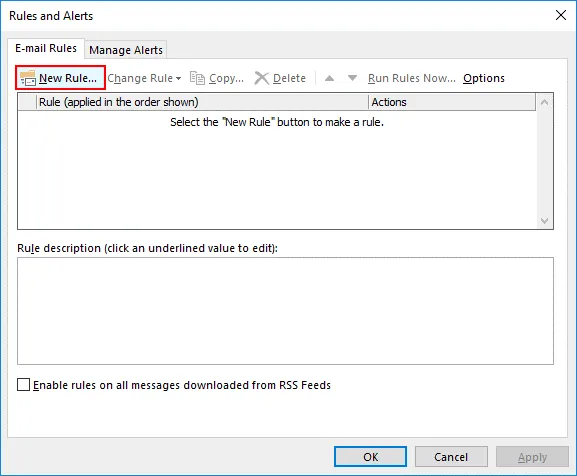
點擊 New Rule 設定新的email轉寄規則。
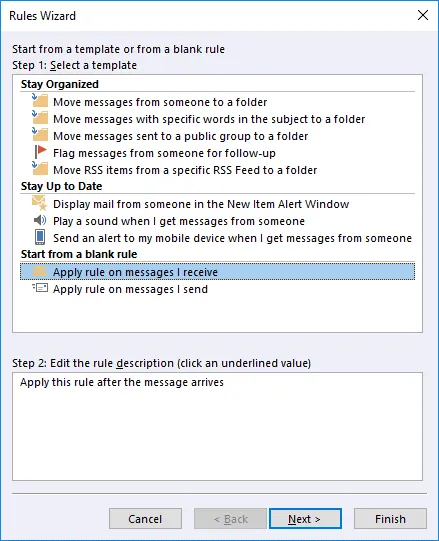
"規則精靈"隨即開啟。
選擇一個範本。點擊 Apply rule on messages I receive 在 從空白規則開始 區段。點擊 Next 在精靈的每個步驟中,請點擊"繼續"。
選取條件。若要將 Office 365 信箱中的所有收件轉寄至另一個信箱,請勿勾選這些選項。

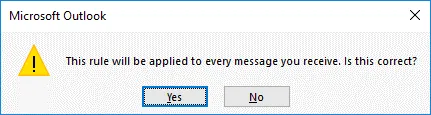
由於未選取任何條件,因此顯示以下通知訊息:
此規則將套用至您收到的每則訊息。這樣沒問題嗎?
點擊 Yes.
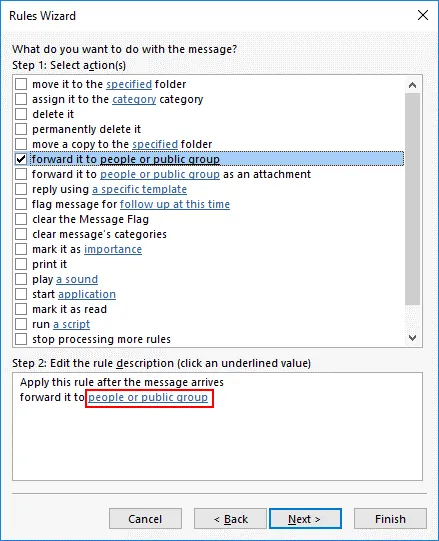
您想對這則訊息執行什麼操作?
步驟 1. 選取 Forward it to people or public group 核取方塊。
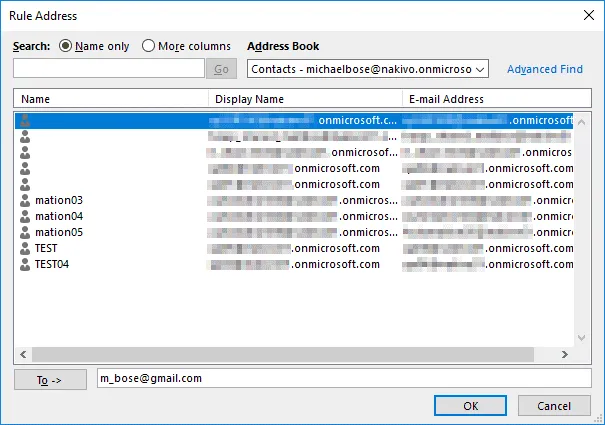
步驟 2. 點擊 people or public group.
請在 To -> 欄位。然後按下 OK.
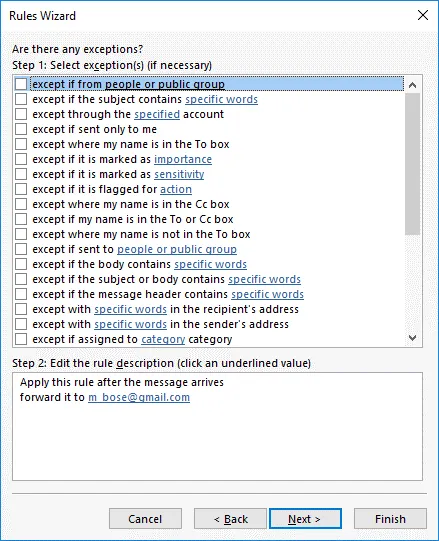
現在,已設定的收件email地址會顯示在"步驟 2"的底部欄位中。

您可以選擇規則的例外情況(如有必要)。在我的範例中,我不會選擇任何例外情況。
請為轉發規則指定一個名稱,例如: Office 365 轉寄 email. 請確保 Turn on this rule 已勾選此核取方塊。您可以選取 立即對"收件匣"中的郵件執行此規則 將現有的 Office 365 電子郵件移至另一個信箱。
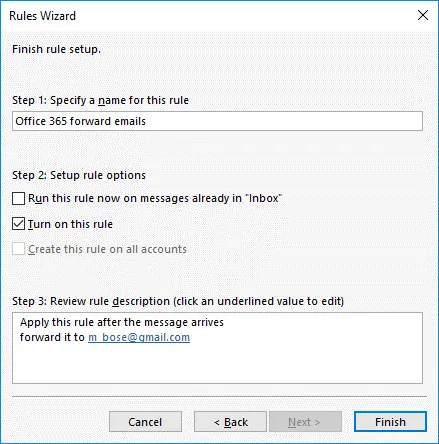
點擊 Finish 完成在 Outlook 中設定 Office 365 電子郵件轉寄。
另請參閱 如何使用 PST 檔案遷移 email 消息.
使用 Office 365 管理中心
Office 365 管理中心(該名稱已更名為 Microsoft 365 管理中心) 是組織中的 Office 365 管理員用於管理 Office 365 電子郵件帳戶、設定 Office 365 電子郵件設定、設定郵件轉寄等操作的中央平台。使用管理中心的優勢在於,能夠集中設定 Office 365 電子郵件轉寄,無需逐一登入每個使用者帳戶。
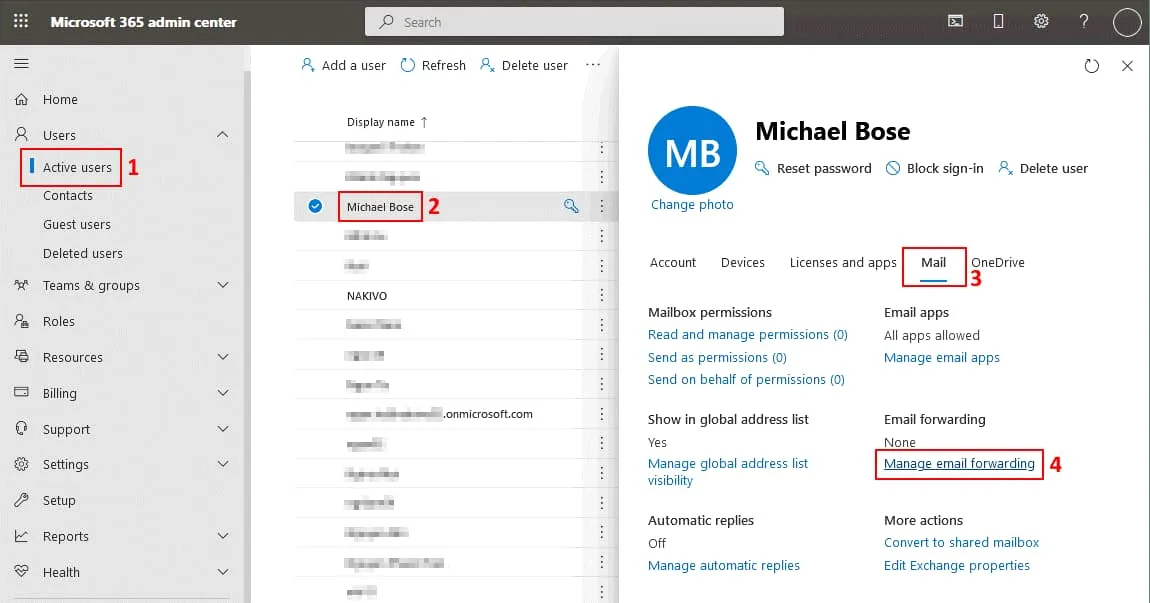
請在網頁瀏覽器中前往 https://admin.microsoft.com 以開啟 Office 365 管理中心。
點擊 Users > Active users 以開啟您組織中現有 Office 365 用戶的清單。
點擊用戶名稱以選取所需的用戶。我選取 麥可·博斯 就我而言,使用者詳細資訊已開啟。
點擊 Mail 按一下 Manage email forwarding.
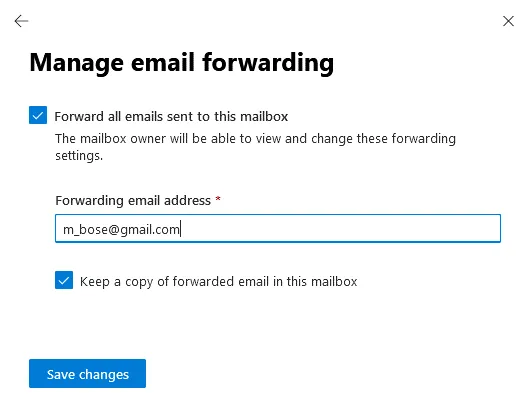
請選擇 Forward all emails sent to this mailbox 在開啟的顯示窗格中勾選核取方塊。
輸入轉寄email地址(即新email應轉寄至的地址)。
選取 Keep a copy of forwarded email in this mailbox 若要保留此 Office 365 電子郵件帳戶中的收件訊息,請勾選此核取方塊。
點擊 Save changes.
必須將授權指派給該 Office 365 使用者,才能轉寄此 Office 365 使用者帳戶(即您要從中轉寄訊息的帳戶)所收到的訊息。
使用 Exchange 管理中心
您可以在 Exchange 管理中心設定將 email 轉寄至另一個帳戶。此方法是使用 Office 365 管理中心的替代方案。就設定與 Office 365 電子郵件相關的設定而言,Exchange 管理中心是 Office 365 管理中心的一部分。
若要在 Exchange 管理中心設定從一個 Office 365 帳戶轉寄郵件至另一個(外部)電子郵件帳戶,您需要先新增一個聯絡人。聯絡人包含使用者的電子郵件地址、使用者名稱及其他個人資料。
若要設定在組織內從一個 Office 365 帳戶轉寄電子郵件至另一個 Office 365 帳戶,則無需新增聯絡人。 您需要建立一個目標帳戶並指派 Office 365 授權(在此情況下,您可以跳過關於新增聯絡人的段落,直接前往下一節)。
新增聯絡人
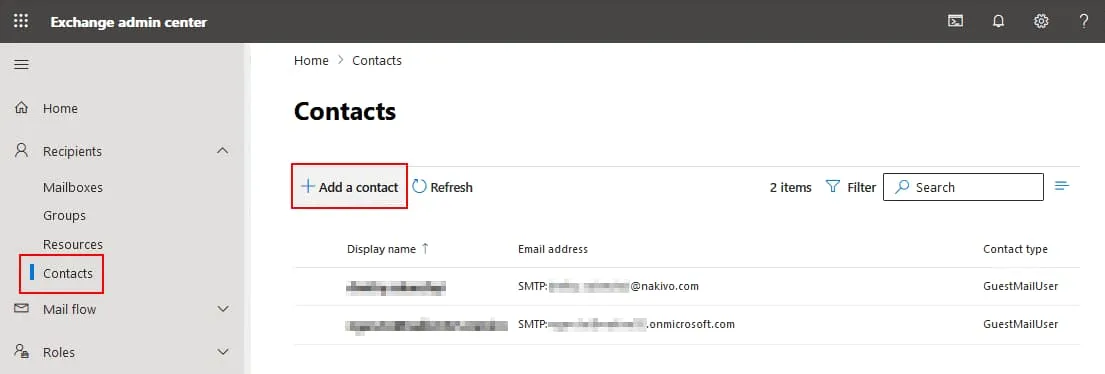
請在網頁瀏覽器中開啟 https://admin.exchange.microsoft.com 以開啟 Exchange 管理中心。
若要新增聯絡人,請前往 Recipients > Contacts 在 Exchange 管理中心的導覽窗格中。
點擊 Add a contact.
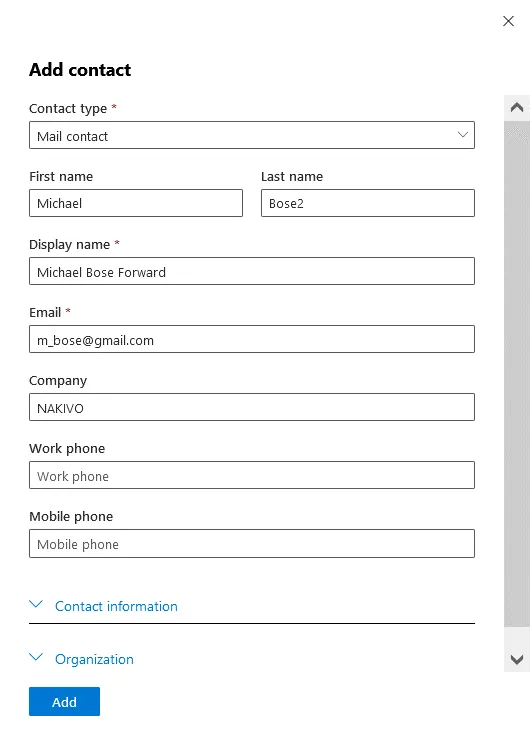
該 新增聯絡人 視窗開啟。聯絡類型、顯示名稱和email為標有 * 的必填欄位。
選取 Mail contact 在"聯絡人類型"下拉式選單中。
輸入顯示名稱和email地址(例如, 麥可·博斯 前鋒 以及 m_bose@gmail.com (依此類推)。在此範例中,我將說明如何將 Office 365 email 轉寄至 Gmail。
如有需要,請輸入其他聯絡資訊。
點擊 Add 儲存設定並新增聯絡人。
外部聯絡人已新增,您現在可以設定從 Office 365 帳戶將郵件轉寄至另一個 email 帳戶。
設定email轉寄
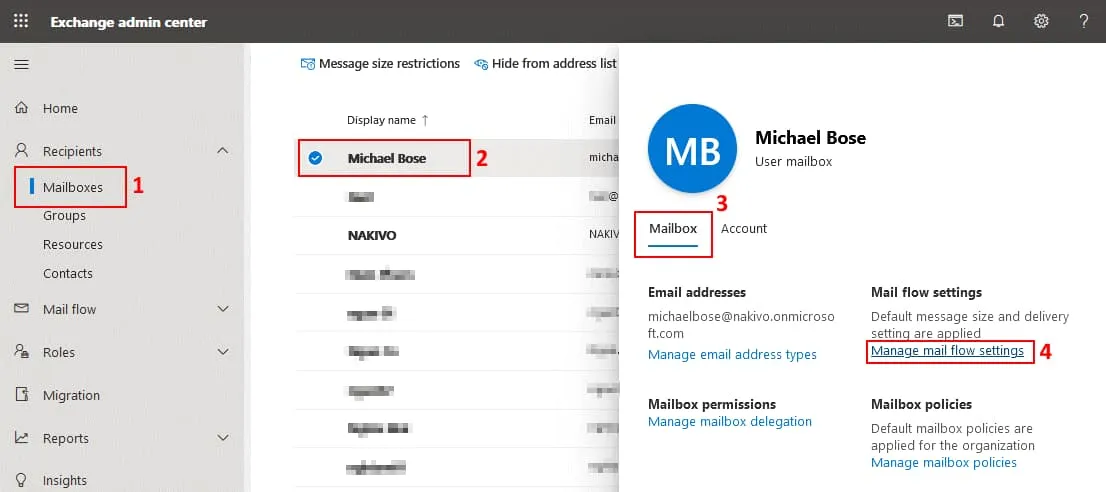
讓我們在 Exchange 管理中心中,將 Office 365 帳戶的郵件轉寄至另一個帳戶。請前往 Recipients > Mailboxes 在導覽窗格中選取所需的 Office 365 使用者帳戶。按一下帳戶名稱,然後在 使用者信箱詳細資訊 點擊 Manage mail flow settings 在 信箱 分頁。
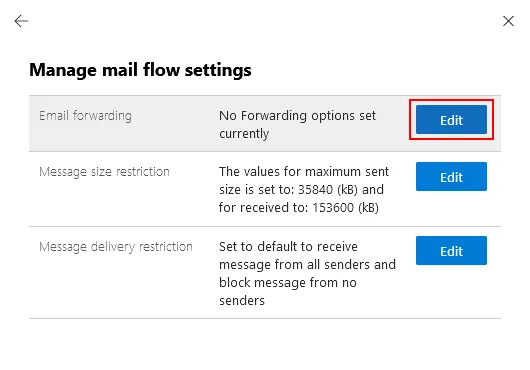
找到位置 Email forwarding 中的""部分 管理流量設定 顯示窗格並按下 Edit.
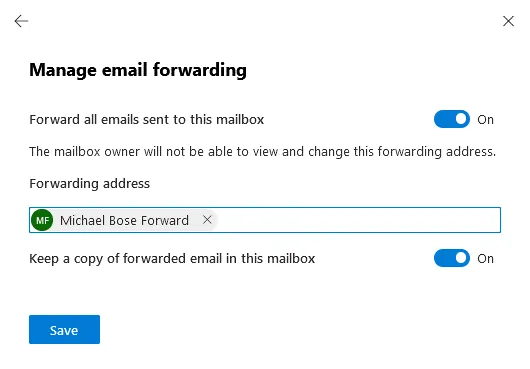
點擊 Forward all emails sent to this mailbox (開啟)。信箱擁有者無法查看或變更此轉寄地址。
輸入作為收件地址的轉寄email地址。在此範例中,我將email轉寄至儲存於Gmail伺服器上的另一個帳戶,並使用先前已新增至Exchange管理中心的(Gmail帳戶)電子郵件聯絡人(Michael Bose Forward)。
點選 Keep a copy of forwarded email in this mailbox (開啟)。
次點擊 Save 以儲存設定。
現在您已經知道如何將 Office 365 電子郵件轉寄至其他電子郵件帳戶,特別是將 Office 365 電子郵件轉寄至 Gmail。
結論
使用者可在 Microsoft Office Outlook 電子郵件客戶端中移動電子郵件並設定郵件轉寄。管理員可透過 Office 365 管理中心和 Exchange 管理中心,為單一使用者或多位使用者設定電子郵件轉寄。
若您將電子郵件轉寄至其他信箱作為 Office 365 電子郵件備份的替代方案,建議考慮採用專用的備份解決方案。 NAKIVO Backup & Replication 支援 Office 365 電子郵件備份、OneDrive 備份及 SharePoint 備份。下載免費版本 NAKIVO Backup & Replication 以保護您的 Office 365 電子郵件及其他 Office 365 資料。