Windows Server 2016 Core 安裝
若要安裝 Microsoft Hyper-V,您需要先安裝 Hyper-V role 於 Window Server. 一種選擇是使用圖形化使用者介面 (GUI) 來執行和管理您的伺服器與虛擬機器。然而,在某些情況下,您可以透過執行來儲存資源 Windows Server 在命令列介面中(無圖形介面)。
要安裝 Hyper-V role,您需要安裝 Windows Server 2016 Datacenter Server Core 作為您的作業系統 (OS) 平台。在本操作指南中,我們使用的是 Datacenter 第 X 版本 Windows Server, 因為它能為 Hyper-V 解鎖最強大的 Enterprise 特點。大多數企業使用 Windows Server Datacenter 或 Windows Server Standard 由於 Windows 授權 優點。請注意,其他版本的操作步驟會有所不同。
Hyper-V Server 基本上是 Windows Server Core 與 Hyper-V role 已安裝。因此,只需安裝 Hyper-V Server,即可免費使用該虛擬化平台。不過,最好還是將 Hyper-V 安裝在 Windows Server 若您持有授權,即可使用進階功能性。在此情況下,您應先安裝作業系統,然後啟用 Hyper-V role. 接下來我們來介紹如何安裝 Windows Server 2016 Core 以及設定。

Windows Server 2016 ISO 下載
首先,您需要下載 ISO 檔案。您需要 MSDN 或使用 Microsoft 帳戶登入以下載 Windows Server 2016 ISO. 不過,如果您沒有該軟體,您可以下載試用版 Windows Server 2016 來自 TechNet 評估中心 關於 Windows Server 2016 下載頁面。該 TechNet 試用版是為期 180 天的限時版本 Windows Server 2016 此版本僅供試用。請在取得該版本之前,先向 Microsoft 註冊一個帳戶。 Windows Server 2016 ISO 下載連結。
Windows Server 2016 資料中心版 Server Core 安裝
您需要將 ISO 映像檔燒錄至 DVD 光碟或 USB 隨身碟。將此儲存媒體插入電腦,並從該媒體開機以啟動系統 Windows Server 安裝。
在安裝 Windows Server 2016 作業系統,您可以選擇僅安裝作業系統,這是一種 Server Core 安裝。 Server Core 這是一種不包含圖形介面或管理工具的精簡安裝。相較於 Desktop Experience,也就是標準的圖形使用者介面 Windows Server 作業系統:
為了示範單一獨立 Hyper-V 主機的安裝流程,我們使用 Server Core 安裝 Windows Server 2016 Datacenter.
註: 關於 Windows Server 2016 Datacenter 關於圖形使用者介面(GUI),您可以閱讀我們的部落格文章 執行 Hyper-V 虛擬機器 (虛擬機器)。
首先請選擇 Windows Server 2016 Datacenter 在清單中與 Windows Server 待安裝的版本 Server Core 從安裝媒體開機後。請參閱以下螢幕截圖: Windows Server 2016 請參閱下方附有作業系統清單的安裝程式。

該 Windows Server 2016 Core 安裝方式與其他情況類似 Windows Server 安裝。請按照設定精靈中的步驟操作:
- 接受授權協議。
- 選擇
Custom Install. - 請選擇您要安裝 Windows 的目標硬碟。
- 請繼續進行安裝。
- 一旦
Windows Server 2016 Datacenter Server Core安裝程序完成後,系統會要求您變更管理員密碼。請按 輸入.
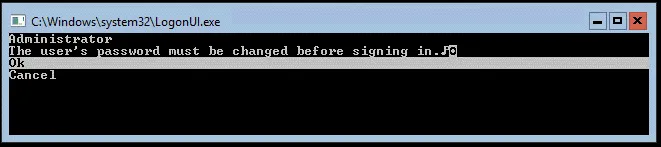
- 設定完密碼後,請按下 輸入 (確定)繼續。

您已經完成了 Windows Server 安裝。現在您需要設定作業系統。
Windows Server 2016 作業系統設定
您現在已到達一個 CMD 命令提示字元且無可見選單。建議您為您的網路設定進行設定。 Windows Server 2016 設定。
設定網路設定
網路設定以及其他大多數設定在 Windows Server 2016 Core 是在控制台介面中進行設定的:
- 類型
sconfig在命令提示字元中執行Server Core設定工具。 - 接著,系統會顯示
Server Configuration選單。
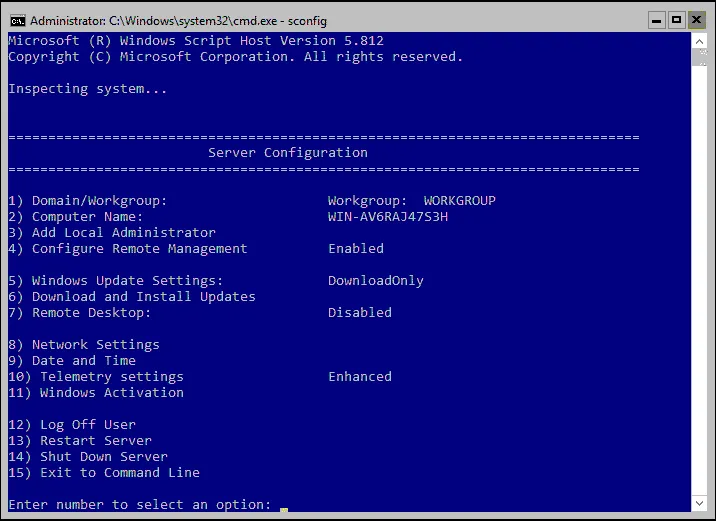
- 類型 8 然後按下 輸入 點開 網路設定 並開啟網路設定選單。建議您為
Windows Server 2016設定。 - 選擇您要設定的網路介面卡。輸入對應的編號,然後按下 輸入. 您必須始終按下 輸入 在這個設定選單中輸入數值後。
- 現在您應該會看到一個包含四個選項的選單:
- Set Network Adapter Address
- Set DNS Servers
- Clear DNS Server Settings
- Return to Main Menu
- 類型 1 設定 IP 位址、子網遮罩和閘道。

- 類型 S 使用靜態 IP 位址設定。
- 請輸入符合您網路設定的適當數值。完成後,系統將帶您返回上一頁 網路介面卡設定 包含四個選項的選單。

- 類型 2 設定網路配置的 DNS 伺服器。
- 請輸入新的首選 DNS 伺服器和備用 DNS 伺服器。
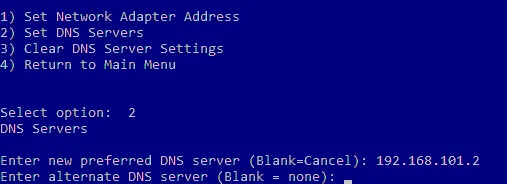
完成後,系統會將您導回上一頁 Network Adapter Settings 選單。
完成網路設定後,應測試網路連線。您可以使用選項 15, Exit to Command Line. 這將帶您前往 cmd 提示,您可以在這裡 ping 您的閘道器、DNS 伺服器等
變更電腦名稱
現在讓我們執行 sconfig 指令在 cmd 要開啟 Server Configuration 再次顯示選單。您應該加入一個 Windows 網域 並將 電腦名稱. 使用 Active Directory 網域 透過網域控制器,您可以集中管理所有 Windows 電腦。
請依照以下步驟變更電腦名稱:
- 選擇 2 在
Server Configuration選單。 - 請輸入新的電腦名稱。
- 重新啟動電腦以套用變更。

變更網域/工作群組設定
開啟 Server Configuration 電腦重新啟動後的選單 (sconfig).
請依照以下步驟變更網域/工作群組設定:
- 選擇
1) Domain/Workgroup選項在Server Configuration選單。 - 類型 D 加入網域。
- 請輸入網域名稱。
- 系統要求您提供一位擁有所需網域權限的使用者憑證。
- 完成網域設定後, 重新啟動 你的
Windows Server機器。

重新啟動後,您將擁有一個具有良好功能性的 Windows Server 2016 Datacenter Server Core 並已準備好安裝 Hyper-V 伺服器角色。
您也可以閱讀關於 GUI 版與核心版 Windows Server 2016 安裝程序的差異 以及執行 Hyper-V 的設定。
結論
安裝 Windows Server 並非難事。安裝核心版本的 Windows Server 2016 Datacenter 讓您能夠減少系統佔用空間及相關開銷,並在 Windows Server 來執行虛擬機器。至於核心版本, Windows Server 2016 設定主要在命令列介面中進行。
若您使用 Hyper-V,請務必備份虛擬機器。下載 NAKIVO Backup & Replication 以保護您的實體與虛擬環境。NAKIVO 解決方案支援實體 Windows Server 備份、Active Directory 備份、Hyper-V 虛擬機器備份等。